

 Business Process

Scaling Microsoft 365 Copilot is about more than assigning licenses. As more people gain access to AI, you need to be confident that your organization’s data remains secure, compliant, and under your control.
That’s where data sovereignty comes in.
Microsoft 365 Copilot doesn’t move your data into a separate AI platform or give people access to files they couldn’t already see. It works within your existing Microsoft 365 tenant, using the permissions, identity policies, and compliance controls you’ve already put in place.
The challenge is that scaling Copilot also scales access to organizational knowledge. Weak permissions, overshared sites, and poor governance become much easier to spot when people can ask questions in natural language and receive answers in seconds.
Ensuring data sovereignty isn’t about limiting what Copilot can do. It’s about making sure your Microsoft 365 environment is governed well enough for AI to work safely at scale.
In this guide, you’ll learn where organizations most often fall short, the steps you should take before expanding Copilot, and how to build a governance model that supports secure AI adoption as your rollout grows.
Why Data Sovereignty Becomes More Complex as Copilot Adoption Grows
It’s easy to manage data sovereignty when a small group of people is testing Microsoft 365 Copilot. You know who has access, what they’re working on, and where sensitive information is stored.
As your rollout expands, that becomes much harder.
More users means more prompts, more documents, and more business processes supported by AI. Each new department also brings its own data, permissions, and compliance requirements.
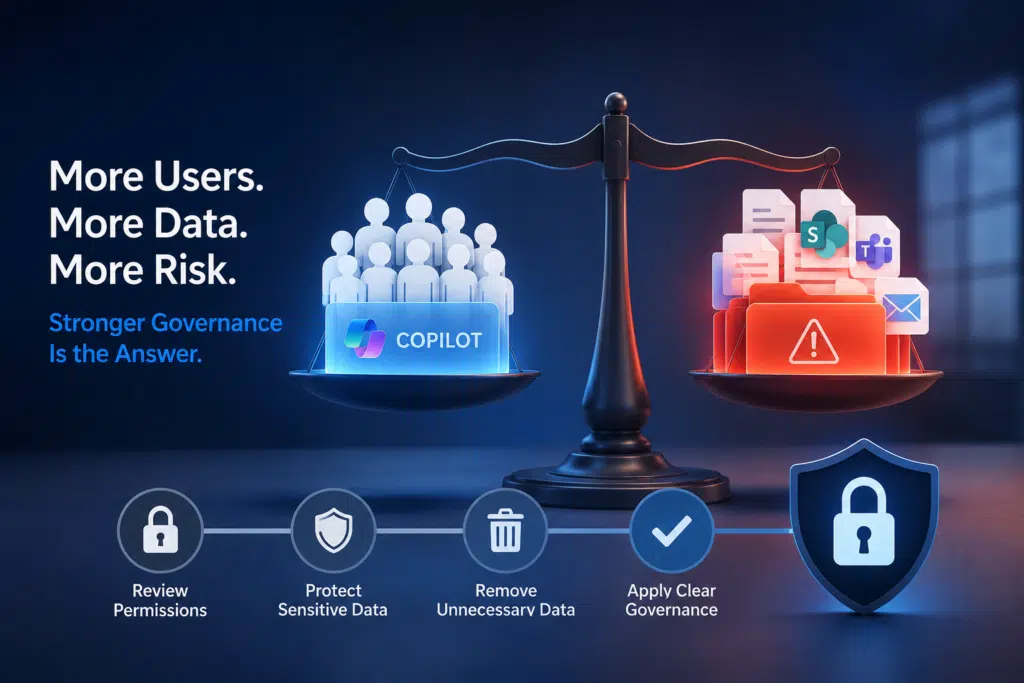
The challenge isn’t that Copilot changes your security model. It doesn’t. The challenge is that more people can work with more information, more often. That increases the chance of exposing weak governance, whether that’s broad permissions, outdated content, or poor information management.
Take SharePoint as an example. A site with overly broad permissions may have existed for years without causing concern. Once employees begin using Copilot to find answers and create content, those same permissions become much more important because the information is easier to discover and use.
The same applies to Microsoft Teams. Old project workspaces, forgotten files, and inactive teams often remain accessible long after the work has finished. If users still have permission to access that content, Copilot can use it to answer their questions.
That’s why scaling Copilot should always go hand in hand with reviewing your Microsoft 365 environment. Before you expand access, make sure your permissions are up to date, your sensitive data is protected, and your governance policies reflect how your business works today.
Organizations that invest in those foundations can scale Copilot with confidence. Those that don’t risk turning long-standing governance issues into AI adoption problems.
How Microsoft 365 Copilot Accesses and Processes Enterprise Data
To protect your data, you first need to understand how Copilot works.
Unlike many AI tools, Copilot doesn’t require you to upload files into a separate platform. It works within your Microsoft 365 tenant and uses Microsoft Graph to find information each user already has permission to access.
When someone submits a prompt, Copilot retrieves relevant information from Microsoft 365 before sending a request to the large language model (LLM). The LLM uses that information to generate a response, which is returned to the user.
This process is known as grounding. Instead of relying only on its training data, Copilot grounds its responses in your organization’s own content. That makes its answers more relevant to your business and helps reduce hallucinations.
For data sovereignty, the key point is simple. Copilot respects your existing permissions. If someone can’t open a SharePoint site, Teams workspace, or document themselves, Copilot can’t access it for them.
The reverse is also true.
If someone has access to information they shouldn’t see, Copilot can use that information when answering their prompts. That’s why reviewing permissions before a wider rollout is one of the most important steps you can take.
Content quality matters too. Duplicate files, outdated documents, and poorly managed information can all affect the answers Copilot produces. Good governance doesn’t just reduce risk. It helps people get better results from AI.
Once you understand how Copilot retrieves and uses information, the focus shifts from AI to governance. In most cases, data sovereignty depends less on Copilot itself and more on the Microsoft 365 environment behind it.
Common Data Sovereignty Risks When Scaling Copilot
Copilot doesn’t introduce new data sovereignty risks. It makes existing ones easier to spot.
Before you expand your rollout, review these common governance issues:
- Overshared SharePoint sites: Permissions often grow over time as people join projects or change roles. If users can access sensitive content, Copilot can use it when answering their prompts.
- Poor Teams governance: Old Teams workspaces often contain conversations, files, and meeting notes that are no longer relevant but are still accessible. Without regular lifecycle management, that information remains available to Copilot.
- Legacy permissions: Employees change jobs, departments evolve, and suppliers come and go. Regular access reviews help ensure people only have access to the information they need.
- Unclassified sensitive data: Without sensitivity labels or Microsoft Purview policies, confidential information can be harder to identify and protect consistently across Microsoft 365.
- Poor information management: Duplicate files, outdated documents, and unmanaged content reduce the quality of Copilot’s responses and make governance harder to maintain.
Once you’ve identified potential governance gaps, the next step is to address them before expanding your rollout. These best practices will help you maintain data sovereignty while giving users the full benefits of Copilot.
Review permissions before you scale
Permissions are the foundation of data sovereignty.
Review SharePoint sites, Teams workspaces, and Microsoft 365 groups to make sure users only have access to the information they need. Pay particular attention to broad permissions that have built up over time or were granted for short-term projects.
The fewer unnecessary permissions you carry forward, the lower your risk.
Classify sensitive information
Not every document should be treated the same.
Use Microsoft Purview sensitivity labels to identify confidential information and apply the right protection automatically. This makes it easier to control how sensitive content is stored, shared, and accessed across Microsoft 365.
Follow the principle of least privilege
People should only have access to the information they need to do their jobs.
Review user access regularly, remove outdated permissions, and ensure external users only have access where it’s genuinely required.
Least privilege reduces risk without affecting productivity.
Govern collaboration spaces
SharePoint sites and Teams workspaces shouldn’t exist forever.
Archive completed projects, remove inactive workspaces, and review guest access on a regular basis. Good lifecycle management reduces the amount of outdated content Copilot can reference.
Monitor your Microsoft 365 environment
Governance isn’t a one-time exercise.
Use tools like Microsoft Purview, audit logs, and Microsoft Secure Score to monitor changes, identify new risks, and confirm your security controls remain effective as adoption grows.
Roll out Copilot in phases
Avoid enabling Copilot for everyone at once.
Start with a small group, review how it’s being used, address governance issues, and then expand to the next group. A phased rollout gives you the chance to improve your governance before deploying at scale.
Treat governance as an ongoing process
Your Microsoft 365 environment will continue to evolve.
New projects, new employees, and new content all affect your governance model. Regular reviews help ensure your policies, permissions, and information management continue to support secure AI adoption over time.

Microsoft 365 Copilot Data Sovereignty Checklist
Before expanding your Copilot rollout, use this checklist to confirm your Microsoft 365 environment is ready. You can copy and paste the below into a basic Word or Excel document.
| Checklist | Status |
| Review SharePoint permissions to identify overshared sites. | ☐ |
| Remove outdated permissions from Microsoft 365 groups. | ☐ |
| Audit guest access across Teams and SharePoint. | ☐ |
| Archive or remove inactive Teams workspaces. | ☐ |
| Apply sensitivity labels to confidential information. | ☐ |
| Configure Microsoft Purview policies for sensitive data. | ☐ |
| Review external sharing settings across Microsoft 365. | ☐ |
| Remove duplicate and outdated content where possible. | ☐ |
| Confirm employees only have access to the information they need. | ☐ |
| Enable audit logging for Microsoft 365. | ☐ |
| Review Microsoft Secure Score and address high-priority recommendations. | ☐ |
| Check that retention policies reflect your compliance requirements. | ☐ |
| Assess third-party apps that can access Microsoft 365 data. | ☐ |
| Pilot Copilot with a small group before wider deployment. | ☐ |
| Schedule regular governance reviews after rollout. | ☐ |
Completing this checklist won’t guarantee perfect governance, but it will help you identify common issues before they affect a wider Copilot deployment.
As your rollout grows, make this review part of your regular Microsoft 365 governance process rather than a one-time exercise.
Frequently Asked Questions About Data Sovereignty in Copilot
Does Copilot move data outside my Microsoft 365 tenant?
No. Copilot works within your Microsoft 365 tenant and retrieves information users already have permission to access. It doesn’t move your business data into a separate repository as part of the normal user experience.
Does Copilot use my organization’s data to train AI models?
No. Microsoft doesn’t use your prompts, responses, or Microsoft 365 data to train the foundation models that power Copilot. Your organization’s data remains within your Microsoft 365 environment and is handled according to Microsoft’s enterprise commitments.
Can Copilot access files users can’t normally open?
No. Copilot respects existing Microsoft 365 permissions. If a user can’t access a document, SharePoint site, or Teams workspace directly, Copilot can’t retrieve that information on their behalf.
Why should I review permissions before rolling out Copilot?
Copilot makes it easier for users to work with the information they already have access to. If permissions are broader than they should be, Copilot can surface content that users may not have discovered otherwise. Reviewing permissions before rollout helps reduce that risk.
What’s the biggest mistake organizations make when scaling Copilot?
Treating Copilot as an AI project instead of a Microsoft 365 governance project.
The organizations that see the best results don’t just deploy licenses. They review permissions, protect sensitive information, and improve governance before expanding access across the business.
Scale Copilot With Confidence
Copilot has the potential to transform how people work. It can help employees find information faster, reduce repetitive tasks, and spend more time on valuable work.
Realizing those benefits depends on the quality of your Microsoft 365 environment.
Strong governance, clear permissions, and well-managed information are what allow Copilot to work safely at scale. Organizations that invest in those foundations are more likely to deliver a successful rollout while maintaining data sovereignty and meeting their compliance obligations.
If you’re unsure whether your Microsoft 365 environment is ready, don’t leave it to guesswork.
Take Cloud Revolution’s free Copilot Readiness Assessment to evaluate your organization’s AI readiness, identify governance gaps, and receive tailored recommendations to help you scale Copilot with confidence.
The assessment takes just a few minutes to complete and provides practical guidance on the next steps for your rollout.
Ready to see if you’re prepared for Copilot?
Take the free Copilot Readiness Assessment today and discover how ready your Microsoft 365 environment is for secure, compliant AI adoption.