

 Business Process


How confident are you that every Microsoft 365 license you’re paying for is actually needed?
Licensing costs can creep up without anyone noticing. New employees join, people change roles, contractors come and go, and extra services get rolled out. But how often do you review whether those licenses are still needed?
A license assigned to someone who left six months ago is an obvious example. But the waste isn’t always that easy to spot. You could be paying for premium features nobody uses, overlapping subscriptions, or more expensive plans than certain employees need.
The problem is that Microsoft 365 licensing decisions are often made when someone joins or a new requirement comes up. They’re rarely revisited with the same attention.
Microsoft 365 license optimization isn’t just about removing licenses and cutting costs. It’s about making sure people have what they need, you’re not paying for what they don’t, and you’re getting the full value from your Microsoft investment.
So, where does licensing waste come from, and how can you stop it?
Five reasons Microsoft 365 licenses go unused
Microsoft 365 licensing waste rarely comes from one big mistake. It’s usually the result of small decisions that build up over time, with nobody checking whether they still make sense.
Here are five common reasons organizations end up paying for licenses they don’t need.
1. Employees leave, but their licenses don’t
When someone leaves your organization, their Microsoft 365 account might be disabled, but that doesn’t always mean their license is reclaimed.
Offboarding processes often focus on removing access and protecting company data. License management can get overlooked, leaving subscriptions assigned to accounts that are no longer active.
Multiply that across a business with hundreds or thousands of employees, and the cost can soon add up.

2. People change roles, but keep their old licenses
An employee might move from one department to another, take on different responsibilities, or no longer need the same applications and services.
But their Microsoft 365 license often stays exactly as it was.
For example, someone who previously needed E5 for their role might no longer require all the features included in that plan. Without a review, the business keeps paying for capabilities they no longer need.

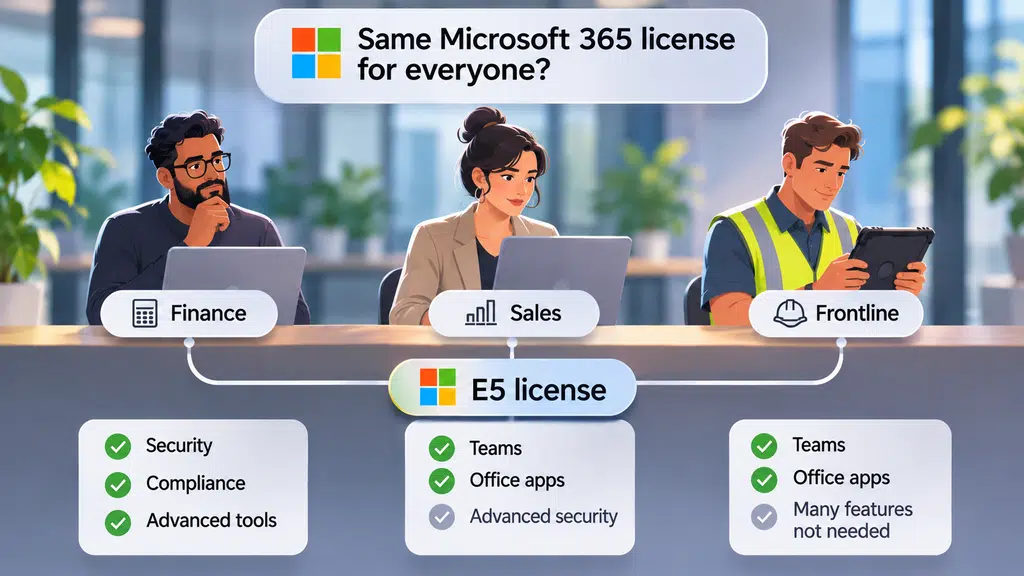
3. Everyone gets the same license by default
Assigning the same Microsoft 365 license to everyone makes administration easier. It doesn’t necessarily make financial sense.
An employee working in finance may have very different security, compliance, and application requirements from someone working in sales or on the frontline.
Yet many organizations default to assigning everyone the same license rather than matching plans to actual job requirements.
4. New services get rolled out, but nobody reviews them
Microsoft 365 subscriptions evolve, and organizations often buy extra licenses or add-ons to support new requirements.
This might include Microsoft 365 Copilot, Teams Premium, Power BI, or other services.
The problem comes when the initial rollout ends, employees change roles, or business priorities shift, but the licenses remain assigned. Nobody checks whether people are still using them or getting enough value to justify the cost.

5. Nobody owns the ongoing review
Perhaps the biggest problem is that nobody is responsible for keeping licensing under control.
IT manages the technology, finance manages the budget, and procurement handles renewals. But who checks whether the licenses being renewed are still right for the business?
Without clear ownership, license reviews become reactive. Someone looks at the numbers when costs rise or a renewal approaches, rather than regularly checking whether the organization is getting value from its subscriptions.

Warning signs you’re wasting money on Microsoft 365
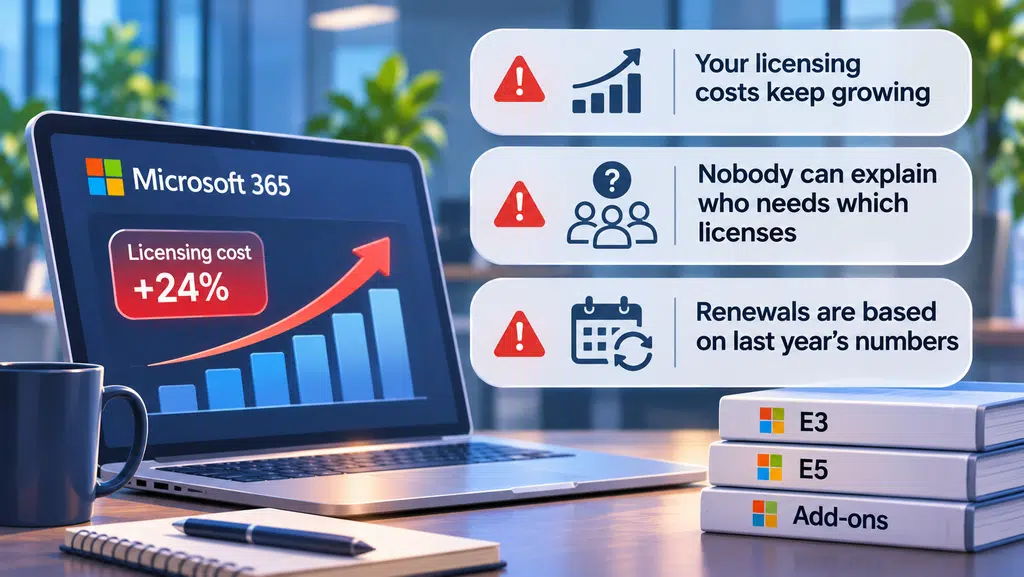
You don’t always need a detailed license audit to spot that something isn’t right. Look out for these three warning signs:
- Your licensing costs keep growing: Your Microsoft 365 bill keeps increasing, but your headcount hasn’t changed much. New subscriptions, premium licenses, and extra add-ons could be pushing costs up without anyone reviewing existing allocations.
- Nobody can explain who needs which licenses: Your IT team can’t clearly explain why some employees have E5 while others have E3, or which roles actually need specific security, compliance, and productivity features.
- Renewals are based on last year’s numbers: Your annual Microsoft 365 renewal simply carries forward the previous year’s license count, without checking whether those subscriptions still match your workforce and business requirements.
Why checking license assignments isn’t enough
Knowing how many Microsoft 365 licenses you’ve assigned is a useful starting point. It doesn’t tell you whether those licenses are being used, whether employees need them, or whether you’re getting value from them.
There are three things you need to understand when reviewing your Microsoft 365 licensing.
Assigned doesn’t mean used
A license can be assigned to an employee who rarely signs in or no longer needs access to the services it provides.
Microsoft 365 usage reports can help you understand how employees use applications such as Teams, Exchange, SharePoint, and OneDrive.
But don’t assume that low activity automatically means a license can be removed. Some employees might only need certain services occasionally, while others have security and compliance requirements that apply regardless of how often they sign in.
Used doesn’t mean right-sized
An employee might actively use Microsoft 365 every day but still have a more expensive license than their role requires.
For example, someone with an E5 license might regularly use Outlook, Teams, and Word without needing the advanced security, compliance, or analytics capabilities included in their subscription.
The question isn’t simply whether someone uses Microsoft 365. It’s whether they need the features included in the license they’re assigned.
Low usage doesn’t always mean low value
Some Microsoft 365 capabilities are valuable precisely because they’re working in the background.
Security features, threat protection, data loss prevention, and compliance tools might not have obvious daily usage statistics, but they can play an important role in protecting your organization.
Removing a license because someone doesn’t actively use every included feature could leave your business without capabilities it relies on.
A proper Microsoft 365 license review needs to look beyond assignment numbers and sign-in activity. You need to understand what each license includes, what employees actually need, and which capabilities your organization depends on.
That’s the difference between simply removing unused licenses and making informed licensing decisions.
Want to start auditing your licenses today?
Download your free M365 Licensing Optimization Playbook.

What are unused Microsoft 365 licenses costing you?
Even a relatively small number of unnecessary licenses can add up to a significant expense over the course of a year.
Let’s take an organization with 1,000 employees as an example.
If just 3% of its Microsoft 365 licenses are no longer needed, that’s 30 licenses being paid for without providing any value.
At an illustrative cost of $22 per license per month, that’s:
Unnecessary licenses
30
Monthly waste
$660
Annual waste
$7,920
Five-year cost
$39,600
Illustrative figures based on a hypothetical $22 monthly license cost. Actual savings depend on your licensing agreement and subscription terms.
And that’s only the most obvious waste.
It doesn’t account for employees on more expensive licenses than they need, unused add-ons, or overlapping subscriptions. Once you start looking at those areas, the potential savings could be considerably greater.
The point isn’t that every organization has the same licensing problem. It’s that even a small amount of waste becomes expensive when you’re managing hundreds or thousands of users.
And unlike a one-off purchase, Microsoft 365 licensing is a recurring cost. If you don’t address the problem, you’re potentially paying for the same unnecessary subscriptions month after month.
How to put Microsoft 365 license optimization into practice
Knowing what needs to change is one thing. Putting the right processes in place is what stops unnecessary licensing costs from creeping back into your budget.
Microsoft 365 already includes several tools that can help you manage license assignments, automate employee changes, and understand how people use the services they’re paying for.
Here’s how to put the three strategies into practice.
Automate license management with Microsoft Entra ID
One of the easiest ways to reduce licensing waste is to make license management part of your employee onboarding and offboarding processes.
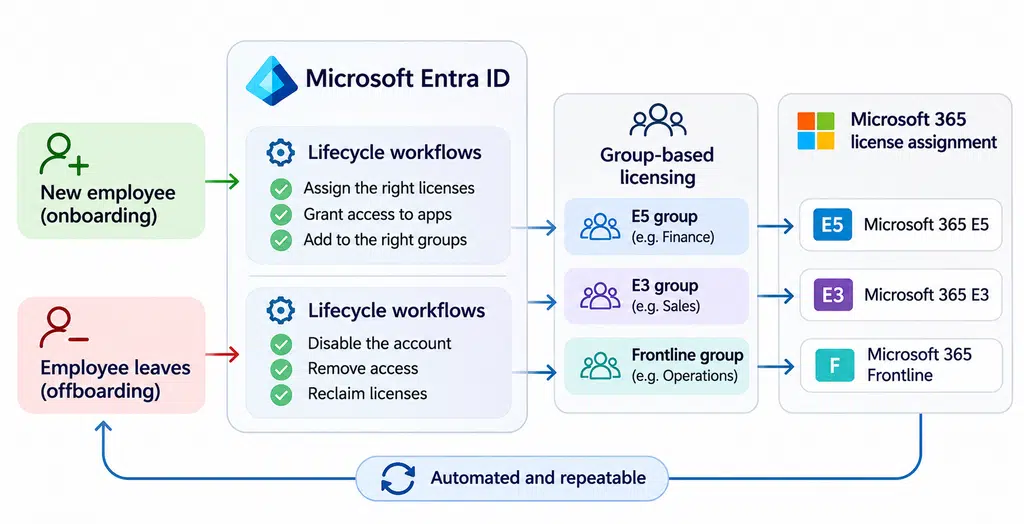
Microsoft Entra ID supports group-based licensing, which means you can assign licenses to groups rather than individual employees.
For example, you could create groups for employees who need Microsoft 365 E3, E5, or frontline licenses. When someone joins the relevant group, they automatically receive the licenses assigned to it. When they’re removed, those group-based license assignments are removed too.
You can take this further with Microsoft Entra Lifecycle Workflows, which can automate tasks when employees join, leave, or change roles.
For example, an offboarding workflow can disable an account, remove access, and remove license assignments after an employee leaves.
This reduces the risk of licenses being left assigned simply because someone forgot to reclaim them.
Match licenses to job requirements using group-based licensing
Group-based licensing also makes it easier to give employees the right Microsoft 365 package for their role.
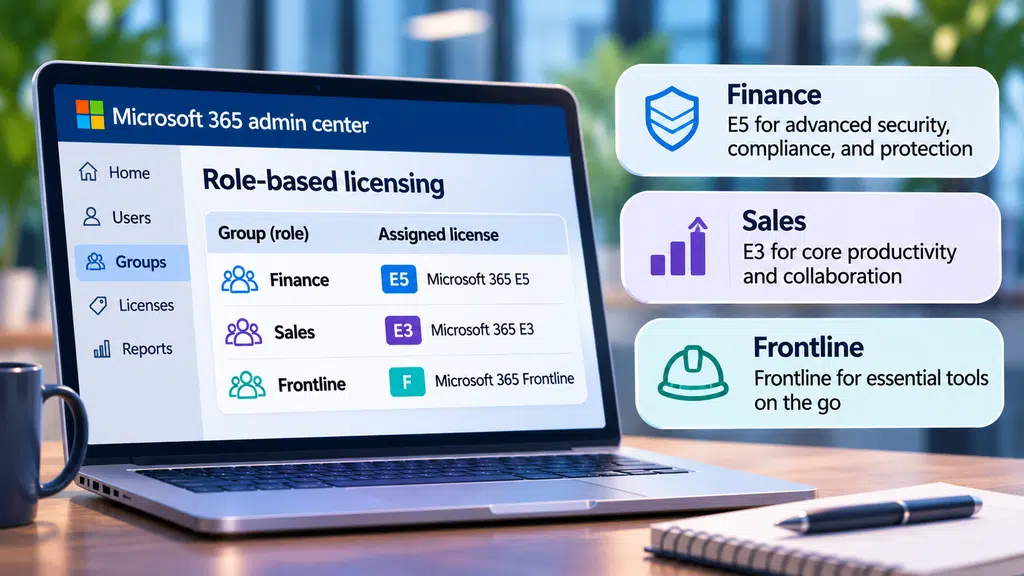
Rather than assigning licenses individually, create groups based on the requirements of different teams or job functions.
For example:
- Finance employees might need E5 security and compliance capabilities.
- Sales employees might only need E3, depending on their requirements.
- Frontline employees might need a frontline license with access to specific Microsoft 365 services.
When someone changes roles, you can move them between groups to reflect their new requirements.
One important detail: when moving someone between licensed groups, add them to the new group and confirm their new license has been applied before removing them from the old group. This helps avoid a temporary loss of access while Microsoft processes the change.
You should still review individual requirements, particularly where employees have specific security, compliance, or application needs. Job titles alone don’t determine which license someone needs.
Use Microsoft 365 reports to review license usage
You don’t have to rely on guesswork to understand how employees use Microsoft 365.
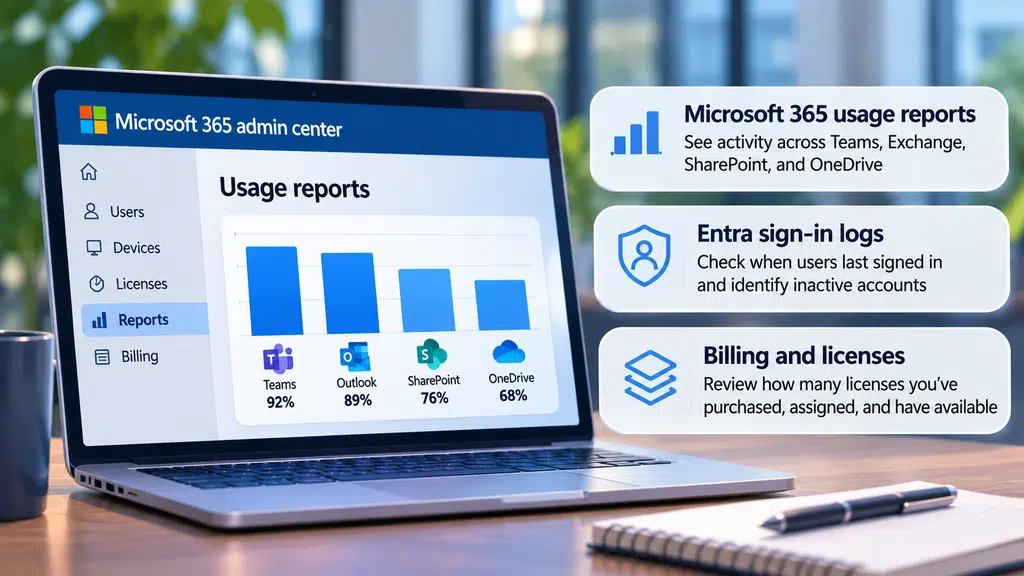
The Microsoft 365 admin center includes usage reports that help you see activity across services such as Teams, Exchange, SharePoint, and OneDrive.
You can use these reports to identify accounts with little or no activity, investigate whether employees are using the services available to them, and spot potential opportunities to review license assignments.
Start with:
- Microsoft 365 usage reports: Review activity across different Microsoft 365 services.
- Microsoft Entra sign-in logs: Check when users last signed in and investigate inactive accounts.
- Billing and Licenses: Review how many licenses you’ve purchased, assigned, and have available.
These reports give you a much clearer picture of your licensing position, but remember that activity alone doesn’t determine whether a license is needed. Always check the employee’s role and business requirements before removing or downgrading a subscription.
One final point: reclaiming an assigned license doesn’t automatically reduce your Microsoft 365 bill. It makes that license available for someone else to use. To reduce your actual subscription costs, you also need to review how many licenses you’re buying and adjust your subscription commitment in line with your agreement and renewal terms.
Licensing note: Microsoft Entra Lifecycle Workflows requires the appropriate Microsoft Entra ID Governance licensing. It’s worth checking the licensing requirements before building this into your processes.
Microsoft 365 license optimization is about more than reducing costs
Reducing your Microsoft 365 bill is worthwhile, but it shouldn’t be the only measure of success.
You could save money by moving employees from E5 to E3, for example. But if that means losing security or compliance features your organization relies on, have you really made a better decision?
Equally, you might discover that you’re paying for E5 licenses but aren’t using the advanced capabilities included in them. In that situation, removing the licenses isn’t necessarily the best answer. You might get considerably more value by configuring those features properly and helping employees use them.
At Cloud Revolution, we believe organizations should get the maximum value from their Microsoft investment. That means looking beyond license assignments and considering what happens before and after the technology is purchased.
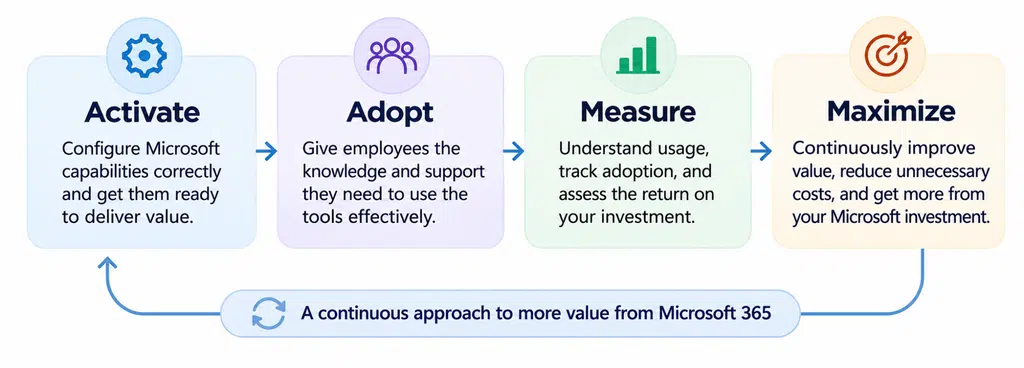
Our approach focuses on four areas:
Activate
Make sure the Microsoft capabilities you’ve invested in are properly configured and ready to deliver value. Having access to security, compliance, and productivity features doesn’t mean they’re automatically working as they should.
Adopt
Give employees the knowledge and support they need to use the tools available to them. There’s little point paying for capabilities that nobody knows how to use or understands the value of.
Measure
Understand how your organization uses Microsoft 365, where adoption is falling short, and whether your investment is delivering the outcomes you expected. Use that insight to make better decisions about future licensing and technology purchases.
Maximize
Continuously look for ways to reduce unnecessary costs, improve productivity, strengthen security, and get more from the Microsoft capabilities you already own.
The result shouldn’t simply be a smaller Microsoft 365 bill. It should be a better return on your Microsoft investment.
Take control of your Microsoft 365 licensing
When was the last time you reviewed whether every Microsoft 365 license your organization pays for is still needed?
A proper review can uncover unnecessary costs, identify better ways to allocate licenses, and highlight capabilities you’re paying for but not using.
At Cloud Revolution, we help organizations optimize their Microsoft investment, from reducing licensing costs to getting more value from the technology they already own.
Want to get more from Microsoft 365?
Learn about Cloud Revolution and how our approach continuously helps customers here.

You must be logged in to post a comment.