

 Business Process

Microsoft 365 Copilot readiness has little to do with whether you can buy the license. It has everything to do with what Copilot will find when you give it access to your Microsoft 365 environment.
If employees have access to sensitive documents, poorly governed SharePoint sites, or information that was shared too broadly, Copilot doesn’t know that the access was accidental. It works within the permissions already assigned to the user.
That makes your existing Microsoft 365 environment critical to a Copilot rollout. Security, permissions, and data governance all matter.
The question isn’t whether Microsoft 365 Copilot will work in your tenant. The question is whether your tenant is ready for it.
In this guide, we’ll explain what Microsoft 365 Copilot readiness means, what you should assess, and what to fix before expanding Copilot across your organization.
What Is Microsoft 365 Copilot Readiness?
Microsoft 365 Copilot readiness is the process of assessing whether your Microsoft 365 environment is prepared for Copilot to work with your organization’s data.
That assessment goes beyond checking whether users have the right licenses. It looks at the conditions Copilot will operate within, including how information is stored, how access is controlled, and how your environment is governed.
A Copilot-ready environment should give you confidence that:
- Users can access the information they need without having unnecessary access to information they shouldn’t see.
- Sensitive and regulated information is appropriately protected.
- Microsoft 365 data is organized well enough for users and AI tools to find the right information.
- Security and governance policies are consistently applied.
- Users understand how to use Copilot and how to validate its output.
The important distinction is between technical deployment and operational readiness.
You might be able to assign Copilot licenses and make the service available to users within days. That doesn’t mean you’ve assessed whether those users have appropriate access to the underlying data.
Copilot uses the permissions already assigned to each user. If those permissions haven’t been reviewed, your organization may be giving Copilot access to an environment that contains years of accumulated sharing decisions, legacy content, and inconsistent governance.
That’s why Copilot readiness should be treated as a Microsoft 365 assessment rather than simply a Copilot deployment exercise.
What does a Microsoft 365 Copilot readiness assessment cover?
A useful assessment should examine six areas:
- Identity and access
- Data and permissions
- Security and compliance
- Microsoft 365 configuration
- Governance and information architecture
- User readiness
The objective isn’t to create a perfectly clean Microsoft 365 tenant before anyone can use Copilot. It’s to identify the risks that matter, understand where they exist, and prioritize the changes required for a controlled rollout.
Suggested Reading
Before assessing your environment, see what can go wrong during a Copilot rollout in our guide to Microsoft Copilot gotchas.
What Are the Microsoft 365 Copilot Requirements?
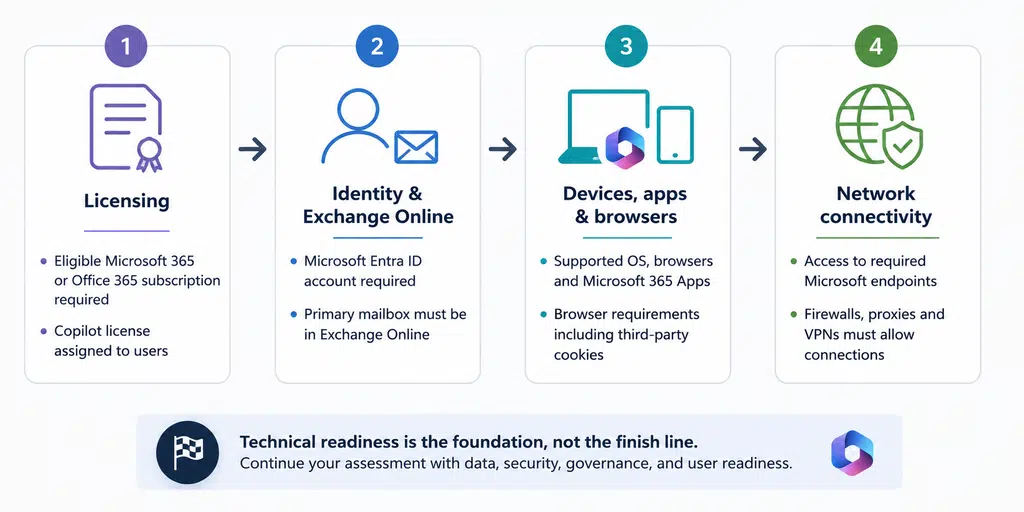
Microsoft 365 Copilot has a set of technical requirements that need to be met before users can access the service. Microsoft currently identifies licensing, Exchange Online, Microsoft Entra ID, supported devices and browsers, and network connectivity as core deployment requirements.
But meeting those requirements doesn’t mean your environment is ready for a successful Copilot rollout.
Licensing
Users need an eligible Microsoft 365 or Office 365 subscription before a Microsoft 365 Copilot license can be assigned. Microsoft currently supports a range of Business, Enterprise, Education, and Frontline plans, so the right approach is to check your specific tenant rather than assume that every Microsoft 365 license includes Copilot.
Licensing is the obvious starting point, but it shouldn’t be where your readiness assessment ends.
Identity and Exchange Online
Each Copilot user needs a Microsoft Entra ID account. Their primary mailbox also needs to be hosted in Exchange Online for Copilot to use mailbox content such as email and calendar information. On-premises and hybrid primary mailboxes don’t support this Copilot grounding.
This makes identity and Exchange architecture part of the practical readiness assessment, particularly for organizations that still have legacy infrastructure.
Devices, apps, and browsers
Users also need supported operating systems and browsers, with Microsoft 365 Apps deployed where required. Browser-based experiences have their own requirements, including support for third-party cookies.
The important point isn’t that Copilot requires specialist hardware. The AI processing happens in Microsoft’s cloud. Your users still need a supported and properly configured Microsoft 365 client environment to use the features reliably.
Network connectivity
Copilot needs access to specific Microsoft network endpoints, and organizations need to ensure their firewall or proxy configuration doesn’t block the required connections. Microsoft also identifies network access as a core deployment requirement.
This matters particularly in environments with restrictive proxy policies, complex VPN configurations, or tightly controlled internet egress.
The requirements beyond the technical checklist
Once the minimum requirements are satisfied, the more important readiness questions begin.
Microsoft recommends reviewing SharePoint governance and Purview labeling before deployment. It also recommends a phased rollout rather than immediately enabling Copilot across the entire organization.
Those recommendations point to a broader reality: technical compatibility is only the baseline for Microsoft 365 Copilot readiness.
Your organization also needs to understand whether users have appropriate access to the information Copilot can retrieve and whether that information is governed appropriately.
That’s where the next part of the assessment becomes critical.
Suggested Reading
For a deeper look at the technical side of Copilot readiness, read our guide to Microsoft 365 Copilot performance requirements.
How Does Microsoft 365 Copilot Access Your Data?
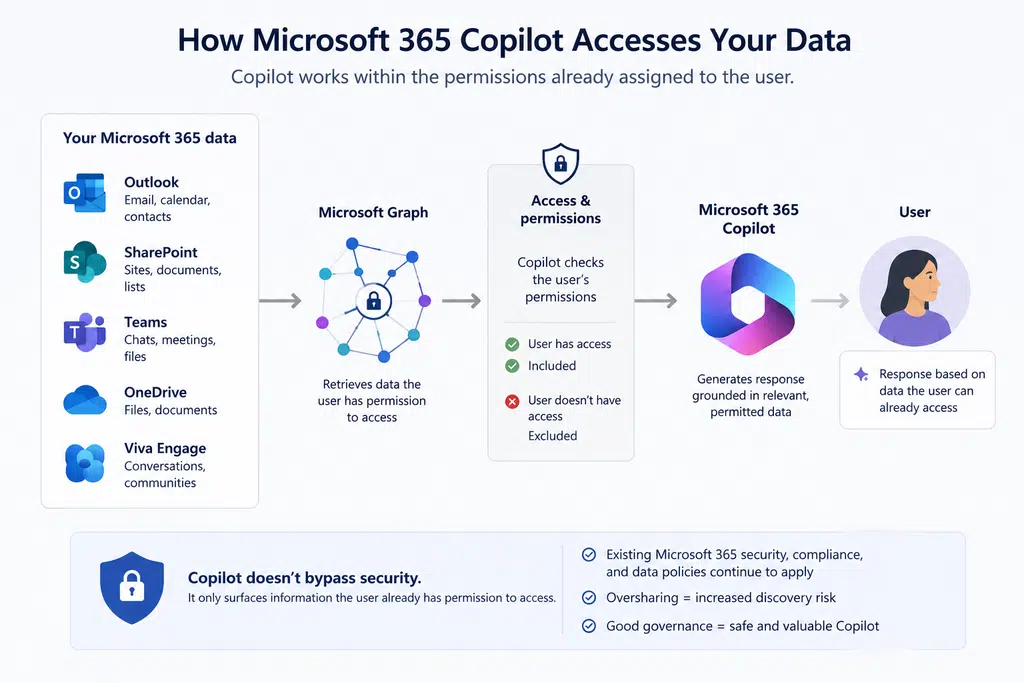
Microsoft 365 Copilot doesn’t get unrestricted access to everything in your tenant.
It works within the access permissions already assigned to the user. Copilot uses Microsoft Graph to retrieve relevant information from sources such as email, documents, chats, and meetings, then uses that information to ground its response.
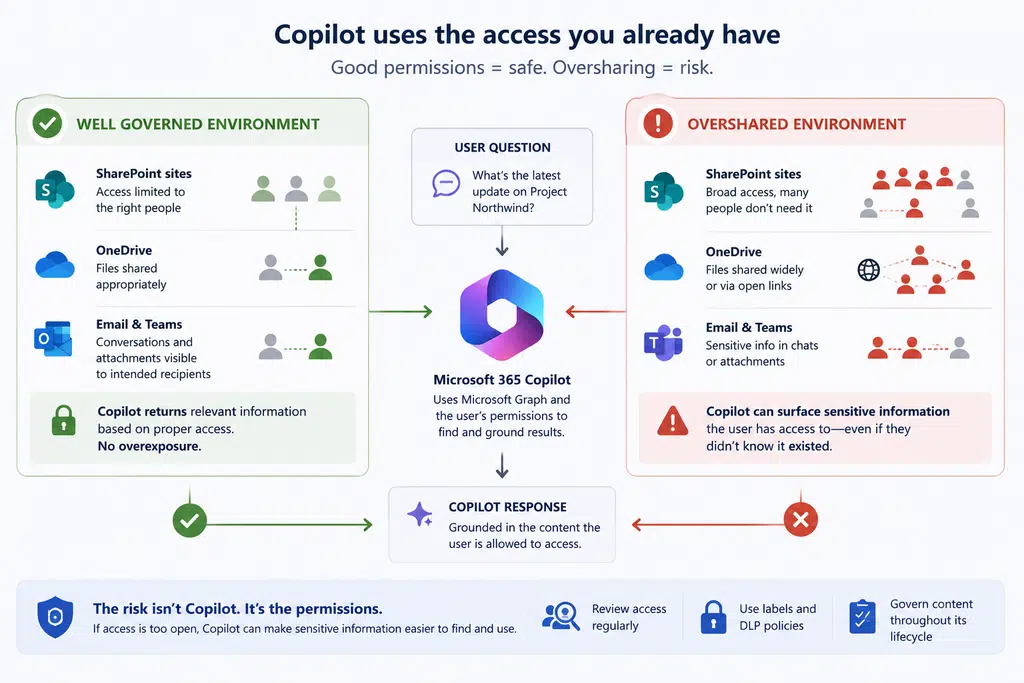
That distinction matters because Copilot doesn’t create a new permission model for your organization. If a user can already access a document in SharePoint, that document can potentially be included when Copilot retrieves information for that user.
Microsoft’s semantic index is designed to respect those existing access boundaries. Content is only surfaced to a user when that user already has permission to access it.
What data can Microsoft 365 Copilot access?
The answer depends on the user’s existing permissions and the Microsoft 365 services available in the environment.
Copilot can work with organizational information such as:
- Email and calendar information
- Documents and files
- Teams chats and meetings
Microsoft Graph provides the underlying organizational context, while semantic indexing helps Copilot find information based on meaning rather than relying only on exact keyword matches.
This is one reason Copilot can be significantly more useful than traditional search. A user doesn’t necessarily need to remember the exact name of a document or the precise wording used in an email for Copilot to identify relevant information.
Copilot follows permissions. That’s the good news.
If your permissions are well managed, Copilot uses those controls rather than bypassing them.
Microsoft states that Copilot only surfaces organizational data that an individual user already has permission to access. Existing Microsoft 365 access controls continue to govern that data.
That means Copilot doesn’t suddenly give an employee access to their CEO’s private documents or another department’s restricted SharePoint site.
But there’s an important caveat.
Copilot can make existing oversharing easier to discover
Consider a SharePoint site containing sensitive documents that was accidentally made available to a much larger group than intended.
Before Copilot, an employee might never find those documents. They might not know the site exists, remember the document name, or think to search for it.
Once Copilot can retrieve information from content that the employee is already authorized to access, discovering that information can become considerably easier.
The underlying problem isn’t Copilot. The problem is the permission that allowed the user to access the content in the first place.
Microsoft explicitly identifies overshared or poorly governed content as a risk when preparing an environment for Copilot.
That’s why a Copilot readiness assessment needs to examine your existing permissions before you start scaling usage.
Can Microsoft 365 Copilot Expose Sensitive Information?
Yes, but the important distinction is how that exposure happens.
Microsoft 365 Copilot doesn’t bypass Microsoft 365 permissions to retrieve information a user can’t access. It uses the user’s existing access rights and respects controls such as SharePoint permissions, sensitivity labels, and Microsoft Purview protections.
The risk comes when those controls don’t reflect how information should actually be accessed.
If an employee already has access to a sensitive document, Copilot can potentially use that document when responding to the employee’s prompt. Copilot isn’t creating the permission. The permission already exists.
What changes is how easy the information is to discover.
The oversharing problem
Microsoft specifically highlights oversharing and poorly governed content as areas organizations should address before deploying Copilot. Its current guidance recommends identifying high-risk sites and sensitive content, reviewing access, and correcting excessive permissions.
Consider a SharePoint site containing confidential project information.
The site might have been shared with a large Microsoft 365 group years ago. The project may be finished, but the membership was never reviewed. The information is still technically accessible to everyone in that group.
Before Copilot, finding that information might require someone to know the site exists and search through its contents.
With Copilot, a user could ask a question in natural language and receive an answer grounded in information they already have permission to access.
That’s why Copilot readiness isn’t just about securing the AI. It’s about making sure the Microsoft 365 environment behind the AI is properly governed.
What should you review?
A Copilot readiness assessment should look closely at the places where permissions and data governance can drift over time.
Start with SharePoint and OneDrive. Review sites with broad audiences, company-wide sharing, anonymous or broadly accessible links, broken permission inheritance, and inactive or ownerless sites. Microsoft recommends addressing these areas as part of preparing a secure and governed foundation for Copilot.
Then review how sensitive information is protected. Sensitivity labels and Microsoft Purview can help identify and protect sensitive content, while DLP policies can provide additional controls over how that information is handled.
Finally, look at whether permissions still match people’s current roles.
Employees change departments. Projects end. Contractors leave. Teams grow. Access that was appropriate six months ago may no longer be appropriate today.
Copilot makes those accumulated decisions more significant because it gives users a much more powerful way to work with the information they can already access.
Copilot isn’t the permission problem
It’s tempting to describe this as a Copilot security problem. If you spend some time on YouTube, you’ll find some rather clickbaity videos suggesting just that.
In many cases, that’s the wrong diagnosis.
If a user can access confidential information that they shouldn’t be able to access, the underlying problem is the Microsoft 365 permission model. Copilot simply provides another way for that user to discover and use the information.
Microsoft’s own guidance makes the same fundamental point: Copilot operates within existing permissions, while overshared content can increase risk and affect the information Copilot surfaces.
That makes permission hygiene one of the most important parts of Microsoft 365 Copilot readiness.
Suggested Reading: For a deeper look at the security implications of Copilot, read our guide to Microsoft 365 Copilot security.
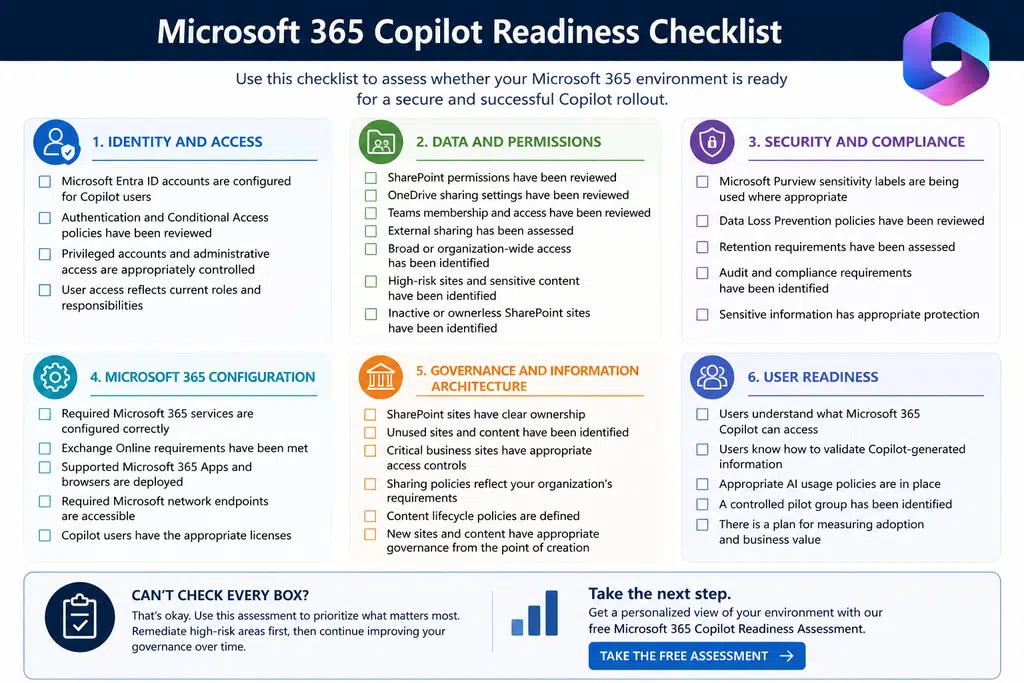
Microsoft 365 Copilot Readiness Checklist
A Microsoft 365 Copilot readiness assessment shouldn’t be limited to checking whether the service can be deployed.
The more important question is whether your tenant is prepared for Copilot to work with the information already available to your users.
Microsoft’s current guidance puts particular emphasis on data governance, oversharing, SharePoint ownership, inactive sites, and information protection before deployment.
Use the checklist below as a starting point.
Identity and access
- Microsoft Entra ID accounts are configured for Copilot users.
- Authentication and Conditional Access policies have been reviewed.
- Privileged accounts and administrative access are appropriately controlled.
- User access reflects current roles and responsibilities.
Data and permissions
- SharePoint permissions have been reviewed.
- OneDrive sharing settings have been reviewed.
- Teams membership and access have been reviewed.
- External sharing has been assessed.
- Broad or organization-wide access has been identified.
- High-risk sites and sensitive content have been identified.
- Inactive or ownerless SharePoint sites have been identified.
Security and compliance
- Microsoft Purview sensitivity labels are being used where appropriate.
- Data Loss Prevention policies have been reviewed.
- Retention requirements have been assessed.
- Audit and compliance requirements have been identified.
- Sensitive information has appropriate protection.
Microsoft 365 configuration
- Required Microsoft 365 services are configured correctly.
- Exchange Online requirements have been met.
- Supported Microsoft 365 Apps and browsers are deployed.
- Required Microsoft network endpoints are accessible.
- Copilot users have the appropriate licenses.
Governance and information architecture
- SharePoint sites have clear ownership.
- Unused sites and content have been identified.
- Critical business sites have appropriate access controls.
- Sharing policies reflect your organization’s requirements.
- Content lifecycle policies are defined.
- New sites and content have appropriate governance from the point of creation.
User readiness
- Users understand what Microsoft 365 Copilot can access.
- Users know how to validate Copilot-generated information.
- Appropriate AI usage policies are in place.
- A controlled pilot group has been identified.
- There is a plan for measuring adoption and business value.
What should you do if you can’t check every box?
Don’t automatically stop your Copilot deployment.
A readiness assessment is designed to help you prioritize. Some gaps may require immediate remediation because they create a significant data exposure risk. Others may be lower priority and can be addressed as part of your wider Microsoft 365 governance program.
The objective is to understand your environment before you scale Copilot, rather than discovering its weaknesses after thousands of users are already relying on it.
Suggested Reading: Want to see where your Microsoft 365 environment stands today? Take our free Microsoft 365 Copilot Readiness Assessment to identify potential readiness gaps before you scale Copilot.
Is Your SharePoint Environment Ready for Copilot?
For many organizations, SharePoint is where Copilot readiness gets real.
Years of collaboration can leave behind thousands of sites, documents, sharing links, permissions, and old content. Copilot can work with that information within the user’s existing access, so the quality of your SharePoint governance directly affects what Copilot can discover and use.
Microsoft’s current Copilot guidance specifically recommends reviewing SharePoint for accidental oversharing, valid site ownership, unused sites, potentially overshared content, and access controls before deployment.
Start with permissions
The first question is simple:
Who can access your SharePoint content today?
Look for sites and libraries where access is broader than the business purpose requires. Pay particular attention to company-wide sharing, broad Microsoft 365 group membership, external sharing, and broken permission inheritance.
These aren’t necessarily Copilot problems. They’re Microsoft 365 governance problems that become more important when users have AI-powered ways to find information.
Microsoft’s SharePoint Advanced Management capabilities include reports for identifying potentially overshared sites and permission structures, along with access reviews that can help site owners correct excessive access.
Find the sites nobody is managing
A SharePoint site without a clear owner is a governance problem.
If nobody is responsible for reviewing its membership, permissions, sharing settings, and content, it’s difficult to know whether the information should remain accessible.
The same applies to inactive sites. Content doesn’t become safe simply because nobody has edited it recently.
Microsoft’s Content Management Assessment can identify inactive sites, ownerless sites, broken permission inheritance, and unrestricted internal sharing. Microsoft defines inactive sites in this assessment as sites with no activity during the previous 180 days.
That gives administrators a practical way to identify parts of the SharePoint environment that need attention before Copilot is scaled.
Don’t just clean up. Put guardrails in place.
A one-time SharePoint cleanup won’t solve the problem permanently.
New Teams create new SharePoint sites. New projects create new documents. Users create new sharing links. Organizations change, and permissions change with them.
Microsoft recommends establishing ongoing controls that prevent oversharing from being recreated after remediation. These can include restricting broad sharing, applying sensitivity labels, and using lifecycle policies for sites and content.
The goal isn’t to make every SharePoint site identical. It’s to make sure access reflects the business purpose of the content and that someone is accountable for maintaining it.
What should you check in SharePoint before Copilot?
At a minimum, assess:
- Which sites contain sensitive or business-critical information?
- Which sites have unusually broad access?
- Which sites are inactive or have no valid owner?
- Where is permission inheritance broken?
- Which sharing links provide wider access than intended?
- Which sites contain content that should be archived or deleted?
- Are new sites created with appropriate governance controls?
If you can’t answer these questions, your SharePoint environment probably needs further assessment before you scale Microsoft 365 Copilot.
Is Microsoft Teams Ready for Copilot?
Microsoft Teams is a significant part of the Copilot readiness equation because Copilot can work with information from Teams chats, meetings, and calls. The exact information available depends on the Copilot experience being used and the user’s existing permissions.
That means Teams governance deserves the same scrutiny as SharePoint governance.
A Teams environment can accumulate hundreds or thousands of teams over time. Some may contain sensitive project information. Others may have been created for a temporary purpose and never closed down.
The issue isn’t the number of Teams you have. It’s whether you know who has access to them and whether that access still makes sense.
Review team membership
Start with membership.
Who belongs to each Team? Are former employees still represented through active accounts? Are contractors still members after their projects have ended? Are people included in Teams simply because they were added to a Microsoft 365 group years ago?
These questions matter because Team membership can determine access to conversations and files that Copilot may use when responding to a user.
Guest access deserves particular attention. Microsoft Teams allows external users to access team resources, including channel conversations, files, and meetings. Shared channels can also provide external collaboration without using a traditional guest account.
Review whether external access is still appropriate for the Teams where sensitive information is discussed.
Look at old and ownerless Teams
Teams that no longer have an active owner create an obvious governance problem.
If nobody is responsible for membership, access reviews, or the content within a Team, there’s no clear point of accountability when circumstances change.
The same applies to Teams created for projects that have already ended.
The content may still have business or legal value, but the access model may no longer reflect who should be able to see it.
Your objective isn’t to delete every inactive Team. It’s to determine what should be retained, what should be restricted, and what can be retired.
Don’t overlook meetings and calls
Copilot can provide summaries and other assistance within Teams meetings and calls. Microsoft provides administrators with controls for managing Copilot use in Teams meetings and events, while Teams Phone users have additional licensing requirements for Copilot in calls.
This makes meeting governance relevant to readiness.
Consider whether your organization has clear expectations around meeting recordings, transcripts, retention, and sensitive discussions.
A meeting can contain information that was never intended to become broadly discoverable. Governance needs to account for that information after the meeting ends, not just while the meeting is taking place.
What should you check in Teams before Copilot?
At a minimum, assess:
- Team membership and ownership
- Guest and external access
- Inactive Teams and project workspaces
- Meeting and call governance
- Access to sensitive conversations and files
- Policies governing Teams creation and lifecycle
You should be able to explain why users have access to the Teams they belong to and what happens when that access is no longer required.
If you can’t, Copilot readiness has uncovered a broader Teams governance issue that should be addressed before you scale adoption.
Suggested Reading: If Teams is central to your Microsoft 365 environment, our guide to Microsoft Teams Voice Consulting explains how to approach Teams as part of a wider communications strategy.
Make Your Microsoft 365 Environment Copilot-Ready
Microsoft 365 Copilot readiness isn’t a licensing exercise. It’s an assessment of whether your existing Microsoft 365 environment is ready for AI to work with the information your users can already access.
The technical requirements are only the starting point. Your permissions, SharePoint environment, Teams configuration, data governance, and security controls all influence what Copilot can access and how safely it can be used.
Microsoft’s own guidance now recommends assessing data governance and security before deployment, with a particular focus on oversharing, guardrails, and ongoing governance.
The organizations that approach Copilot this way don’t need to wait until their Microsoft 365 environment is perfect. They need to understand where the material risks are, address the issues that matter, and put controls in place that prevent those problems from returning.
That’s the difference between simply deploying Copilot and being ready for Copilot.
Is your Microsoft 365 environment ready?
You don’t need another generic Copilot checklist. You need to know where your environment stands.
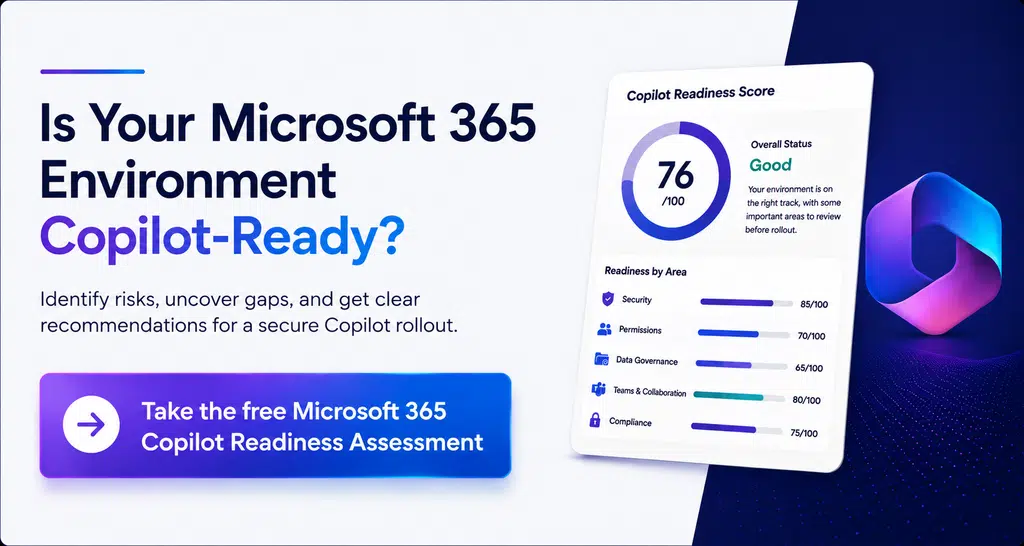
Our free Microsoft 365 Copilot Readiness Assessment helps you identify potential gaps across your Microsoft 365 environment so you can make informed decisions about your Copilot rollout.
Take the free Microsoft 365 Copilot Readiness Assessment
You must be logged in to post a comment.