

 Thought Leadership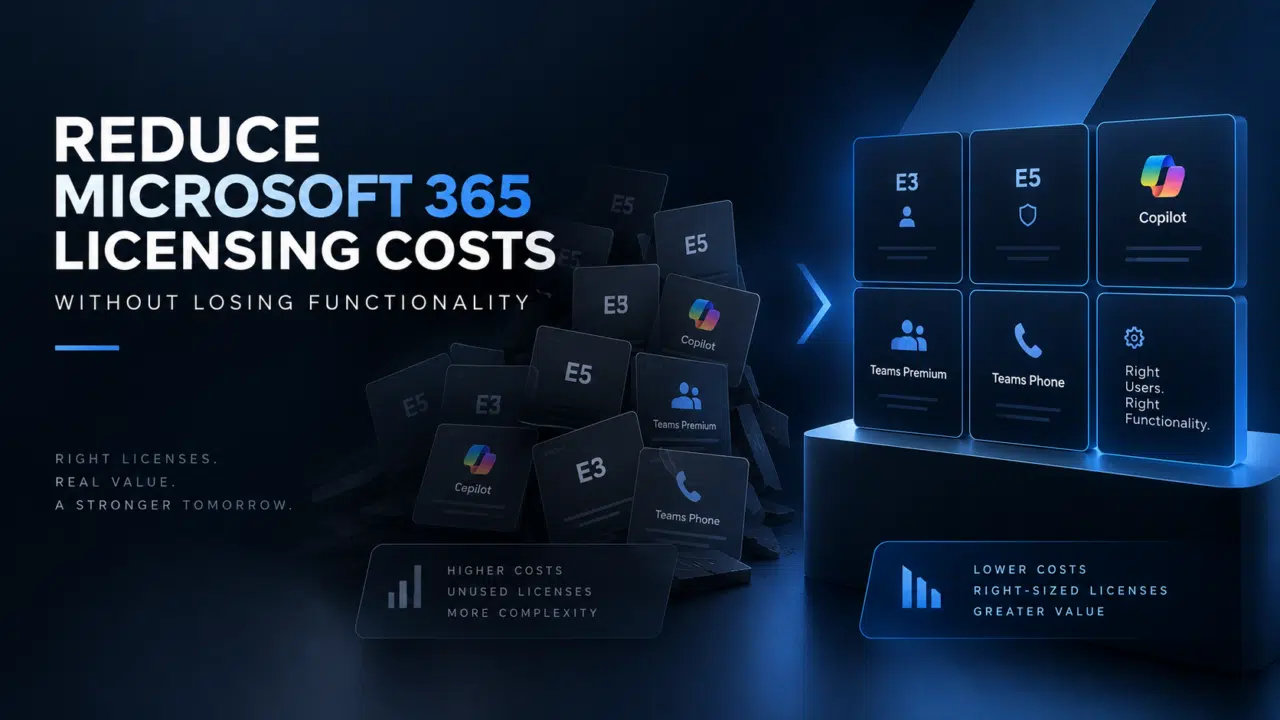

Most organizations don’t have a Microsoft 365 licensing problem.
They have a licensing visibility problem.
- You might have hundreds of users on E5 because that was the easiest option when they were onboarded.
- You might be paying for Teams Premium for people who rarely use its advanced capabilities.
- You might have rolled out Copilot to an entire department without knowing which roles will actually get enough value from it.
And somewhere in your tenant, there are probably licenses assigned to people who have changed roles, left the business, or simply don’t need everything they’re paying for.
The obvious response is to cut licenses.
That’s usually the wrong response.
The goal isn’t to buy the cheapest Microsoft 365 licenses. It’s to buy the right licenses for the people who need them.
That means understanding what your users actually do, which capabilities they need, and where you’re paying for functionality that isn’t being used.
It also means looking beyond the price of the license itself. Overlicensing creates hidden costs through unnecessary spend, duplicated capabilities, unused AI investments, and a licensing environment that’s harder to manage and optimize.
In this guide, we’ll look at how to optimize Microsoft licenses without taking functionality away from the people who need it
Are You Paying for Microsoft 365 Licenses Nobody Uses?
A scary place to start, I know. But it’s surprisingly easy for Microsoft 365 licenses to accumulate.
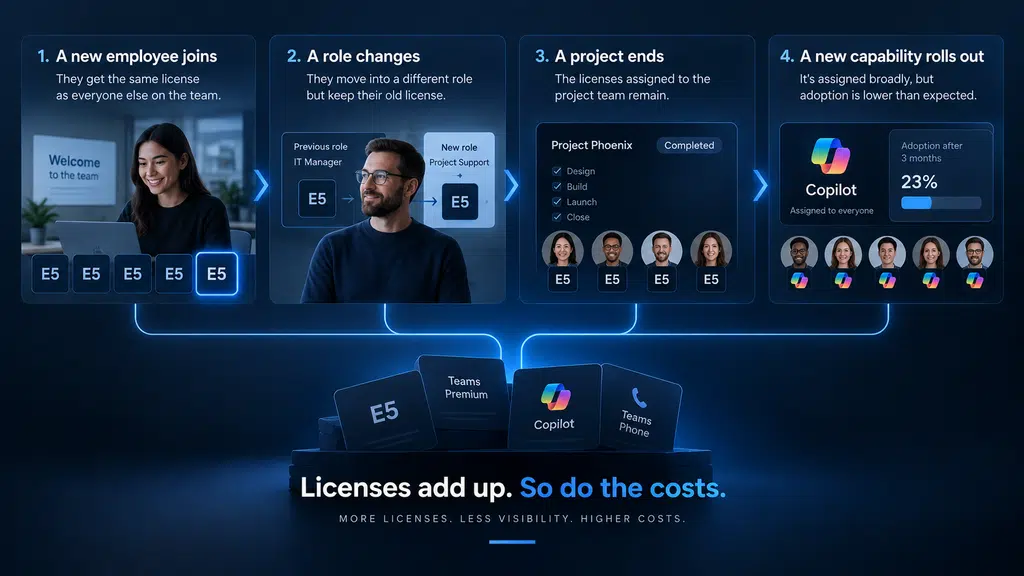
A new employee joins and gets the same license as everyone else on the team. Someone moves into a different role but keeps their old license. A project ends, but the licenses assigned to the project team remain. An organization rolls out a new capability and assigns it broadly, only to discover months later that adoption is low.
None of these decisions necessarily looks expensive on its own.
Across hundreds or thousands of users, they add up.
The problem isn’t just unused licenses
When people think about licensing waste, they usually think about licenses that aren’t being used at all.
Those are the easy ones to find.
The more interesting question is whether people are using everything they’re licensed for.
A user might be actively using Microsoft 365 every day while only relying on a fraction of the capabilities included in their license.
For example:
- An E5 user may primarily use Outlook, Teams, Word and Excel.
- A Teams Premium license may be assigned to someone who only needs standard Teams meetings.
- A Copilot license may sit with a user who rarely incorporates Copilot into their workflow.
- A Teams Phone license may be assigned to someone who doesn’t actually need business telephony.
- A user may have retained a premium license after moving into a role with different requirements.
These aren’t necessarily mistakes. There can be legitimate reasons for each licensing decision.
The problem is when nobody is regularly checking whether those reasons still apply.
Usage doesn’t automatically tell you what to remove
This is where licensing optimization gets more nuanced.
A user who hasn’t used a particular feature recently doesn’t necessarily mean they don’t need the capability.
Some features exist for occasional but important scenarios. Security and compliance requirements can also make a higher-level license appropriate even when day-to-day feature usage looks limited.
That’s why a good Microsoft 365 license review shouldn’t be based on a simple rule such as:
“If they don’t use it, remove it.”
Instead, you need to understand the relationship between the user’s role, their business requirements, their actual usage and the capabilities their license provides.
The question isn’t:
“Are they using this license?”
It’s:
“Do they need this license?”
That distinction is at the heart of effective Microsoft license optimization.
And it’s also where the biggest opportunities can emerge.
Because once you understand what people actually need, you can start asking a much more valuable question:
Are we paying for more Microsoft 365 functionality than our users actually require?
How to Optimize Microsoft Licenses
Optimizing Microsoft licenses isn’t about finding the cheapest license and assigning it to as many people as possible.
It’s about matching the right license to the right user for the right business requirement.
That sounds straightforward. In practice, it requires looking at your Microsoft 365 environment from several different angles.
A useful way to approach license optimization is:
Inventory → Usage → Requirements → Right-size → Validate → Review

1. Inventory what you have
Start with a clear picture of your current licensing estate.
How many E3 and E5 licenses do you own? How many Copilot, Teams Premium and Teams Phone licenses are assigned? How many are unassigned? Are there licenses being purchased but not actively allocated?
You can’t optimize what you can’t see.
2. Understand how licenses are being used
Next, look beyond assignments.
Which capabilities are people actually using? Which licenses have low or no activity? Are there groups of users with similar roles but very different licensing?
Usage data can reveal where to investigate, but it shouldn’t make the final decision on its own.
3. Map licenses to business requirements
This is the step that’s often missing from a basic Microsoft licensing audit.
A user’s lack of activity doesn’t automatically mean they don’t need a capability. Their role, security requirements, compliance obligations and business responsibilities all matter.
The question is:
What does this person need to be able to do?
Then determine which Microsoft 365 license provides those capabilities.
4. Right-size the estate
Once you understand requirements, you can start identifying opportunities to:
- Remove genuinely unnecessary licenses
- Move users to a more appropriate license
- Consolidate overlapping capabilities
- Target premium add-ons to the people who need them
- Reconsider broad deployments of Copilot and other AI capabilities
- Keep higher-cost licenses where there’s a clear business or technical justification
This is where meaningful savings can emerge.
But there’s an important distinction between right-sizing and simply cutting costs.
If moving someone from E5 to E3 removes a capability their role genuinely depends on, you’ve reduced the licensing bill but created a business problem.
That’s not optimization.
5. Validate before making changes
Before changing licenses at scale, test your assumptions.
Identify a representative group of users, confirm that the proposed licensing model supports their workflows, and check for dependencies you might not have spotted in the initial analysis.
A spreadsheet can tell you that a license looks unnecessary.
It can’t always tell you why someone needs it.
6. Make license optimization an ongoing process
Your licensing estate changes every time someone joins, leaves, changes roles or takes on new responsibilities.
Microsoft’s product portfolio changes too.
New capabilities can make an existing license more valuable. New add-ons can create new opportunities—or new sources of unnecessary spend.
That means license optimization shouldn’t be a project you run once before a renewal.
It should become part of how you manage your Microsoft 365 environment.
The objective isn’t fewer licenses. It’s a licensing estate where every license has a reason to exist.
The Hidden Cost of Overlicensing
The cost of an unnecessary Microsoft 365 license is easy to calculate.
The hidden cost of overlicensing is harder.
If you’re paying for an E5 license when an E3 license would meet a user’s requirements, the obvious issue is the difference in subscription cost.
But multiply that across hundreds or thousands of users, and the financial impact can become significant.
Then add the less obvious costs.
You’re paying for functionality nobody needs
Microsoft 365 plans contain a huge range of capabilities.
That’s part of their value—but it can also make licensing decisions difficult.
When users are given a premium license by default, you’re effectively paying for a collection of capabilities whether they use them or not.
The question isn’t whether those capabilities are useful.
It’s whether that particular user needs them.
You’re making future decisions from an inflated baseline
Overlicensing can also become self-perpetuating.
If everyone has E5 today, E5 becomes the assumed starting point for tomorrow’s licensing decisions.
A new employee gets E5 because that’s what the organization uses.
A team grows, so more E5 licenses are purchased.
A new capability is introduced, and it’s deployed to the same users who already have premium licensing.
Before long, the licensing estate reflects historical decisions rather than current business requirements.
You’re making your environment harder to manage
The more complex your licensing estate becomes, the harder it is to understand.
You may have multiple license types, add-ons, exceptions and groups with different combinations of capabilities.
That complexity makes it harder to answer basic questions:
- Who has what?
- Why do they have it?
- Do they still need it?
- What would happen if we changed it?
A well-optimized licensing environment isn’t necessarily one where everyone has the same license.
It’s one where there’s a clear reason behind the licensing decision.
And then there’s the opportunity cost
Every dollar spent on unnecessary licensing is a dollar that can’t be spent elsewhere.
That could mean delaying investment in security, employee productivity, data governance, AI adoption or other technology initiatives that could deliver greater value.
This is why Microsoft license optimization shouldn’t be framed simply as a cost-cutting exercise.
The real opportunity is to move money from low-value licensing into higher-value technology investments.
And that brings us to one of the most common sources of overlicensing: Microsoft 365 E5.
Why Microsoft 365 E5 Isn’t Always the Right Answer
E5 often becomes the answer to a question nobody actually asked.
A business needs to standardize Microsoft 365. IT wants to keep the environment simple. Procurement wants predictable licensing. So everyone gets E5.
The problem is that standardization and optimization aren’t the same thing.
If a 2,000-user organization puts everyone on E5, it has certainly simplified one decision: everyone has the same license.
But it hasn’t answered the more important question:
Does every one of those 2,000 users need everything they’re licensed for?
That’s where the economics start to change.
Why am I paying for E5?
For every E5 user, there should be a reason.
Not a historical reason:
“They’ve always had E5.”
Not an administrative reason:
“It’s easier if everyone has the same license.”
And not a precautionary reason:
“We might need it eventually.”
A useful licensing strategy should be able to explain why a user or user group needs E5 today.
That might be driven by security requirements. It might be compliance. It might be analytics, communications, information protection or another specific capability.
But if the justification can’t be articulated, E5 deserves a closer look.
E3 vs. E5: What’s the ROI?
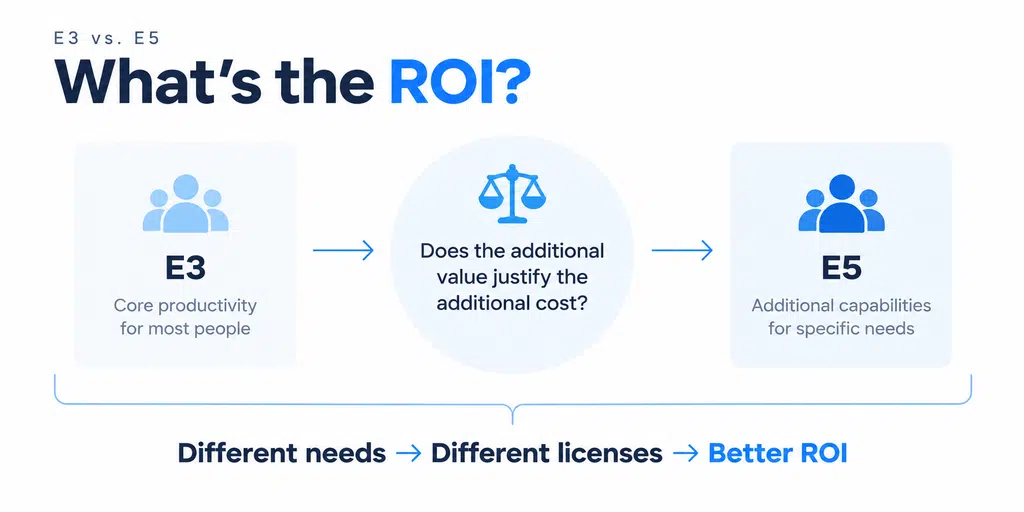
This is why a simple E3 vs. E5 feature comparison doesn’t tell you enough.
The fact that E5 includes more capabilities than E3 is not, by itself, a reason to buy E5.
The relevant calculation is:
Additional cost of E5
versus
Value of the additional capabilities actually required
And that calculation can vary dramatically between user groups.
Your security team may have a compelling reason to use E5.
Your finance team might have a different requirement.
A frontline worker may have an entirely different set of needs.
The result could be a mixed licensing model in which different groups have different licenses based on what they actually need.
That’s not unnecessary complexity.
That’s right-sizing.
The danger of licensing by job title
There’s another trap here: assuming everyone with the same job title needs the same license.
Two people might both be “Managers” but have very different responsibilities, systems access and regulatory requirements.
Equally, a group of users in completely different departments might have almost identical Microsoft 365 requirements.
The better approach is to license around capabilities and requirements, not organizational charts alone.
Start with:
What does this user need to do?
Then:
What capabilities are required to do it?
Then:
What’s the most appropriate way to license those capabilities?
When E5 really does make sense
The answer isn’t to eliminate E5.
In some environments, the additional capabilities can justify the cost many times over.
The point is to make E5 a deliberate decision rather than a default.
If you have a clear business, security or compliance requirement for E5, keep it.
If you don’t, investigate.
And if you have thousands of E5 licenses, even a small percentage of users who don’t require the additional capabilities can represent a substantial optimization opportunity.
That’s why the right question isn’t:
“How many E5 licenses can we get rid of?”
It’s:
“Which users genuinely need E5, and what would we lose if they didn’t have it?”
Answer that question properly, and you’re no longer just cutting Microsoft licensing costs.
You’re building a licensing model based on need, value and risk.
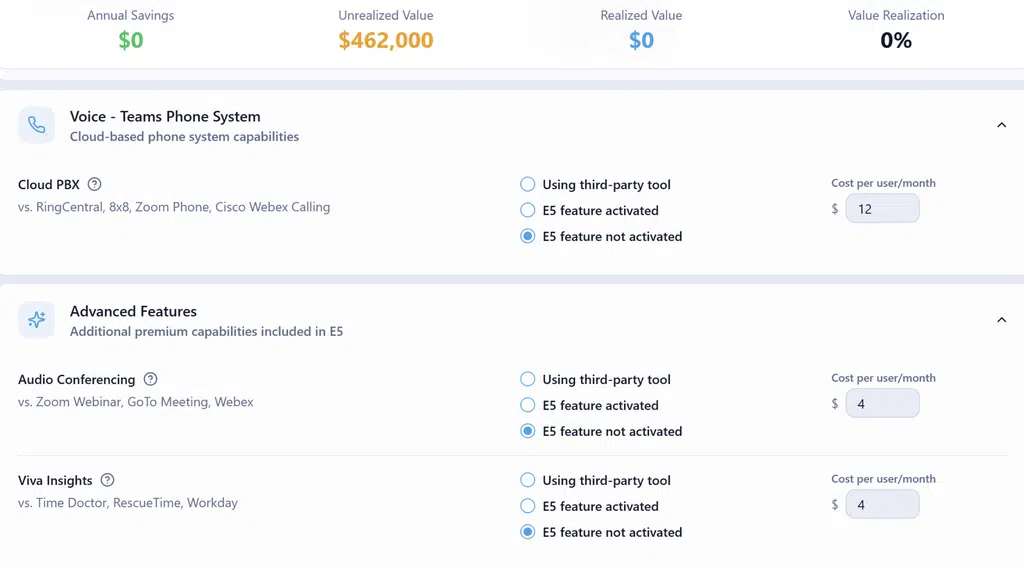
Use the E5 Value Calculator to estimate the potential value of your Microsoft 365 E5 investment.
Teams Phone Can Change the E3 vs. E5 Calculation
One reason organizations end up with more E5 licenses than they need is Teams Phone.
In some environments, E5 has been used as the simplest way to give users the telephony capabilities they need. But that doesn’t automatically mean every user who needs Teams Phone also needs the full E5 package.
That’s worth testing as part of an E3 vs. E5 review.
Ask:
- Who actually needs external calling?
- Who needs a dedicated business number?
- Could Teams Phone be provided through a different licensing combination?
- Are users on E5 primarily because of their telephony requirements?
This is an important distinction because you can end up with a situation where E5 is being used to solve a Teams Phone requirement, while the user is also receiving a long list of additional capabilities they don’t need.
If that’s happening across a large user population, the potential optimization opportunity can be significant.
Don’t assume the license is the requirement. Find the requirement first.
And What About E7?
If E5 is already difficult to evaluate, what happens when the conversation moves beyond E5?
That’s where E7 enters the picture.
E7 isn’t simply another step on the Microsoft 365 licensing ladder. It’s a useful way to think about what happens when organizations start combining Microsoft 365’s productivity, security, communications, analytics and AI capabilities into a broader technology strategy.
And that changes the licensing question.
Instead of asking:
“Which Microsoft 365 license should we buy?”
you need to start asking:
“What capabilities are we trying to provide, for which users, and what is the most valuable way to deliver them?”
That’s particularly important as organizations adopt more AI.
Read More About E7: We Asked Copilot To Tell Us Everything About The Microsoft E7 License
Copilot, agents, advanced security, analytics and other capabilities can change the value equation of an existing Microsoft 365 investment. A license that looked expensive when viewed purely as a collection of features can look very different when those capabilities are contributing measurable business value.
The problem with looking at license cost in isolation
Consider an organization with a large E5 estate.
The natural question is:
“Could we save money by moving some users to E3?”
That’s worth investigating.
But there’s another question that often gets missed:
“Are we getting enough value from the capabilities we’ve already paid for?”
If you’re only looking at the first question, you’re optimizing for cost.
If you look at both, you’re optimizing for value.
That’s the more important conversation as Microsoft 365 becomes increasingly central to how organizations work.
Measure the value before you decide what to change
This is where an E7 assessment can be useful.
Rather than treating Microsoft 365 as a collection of individual licenses, look at the broader value being generated across the organization.
- What is your investment enabling?
- Where are users benefiting?
- Which capabilities are creating measurable productivity or business outcomes?
And where are you paying for capabilities that aren’t being used or aren’t delivering enough value?
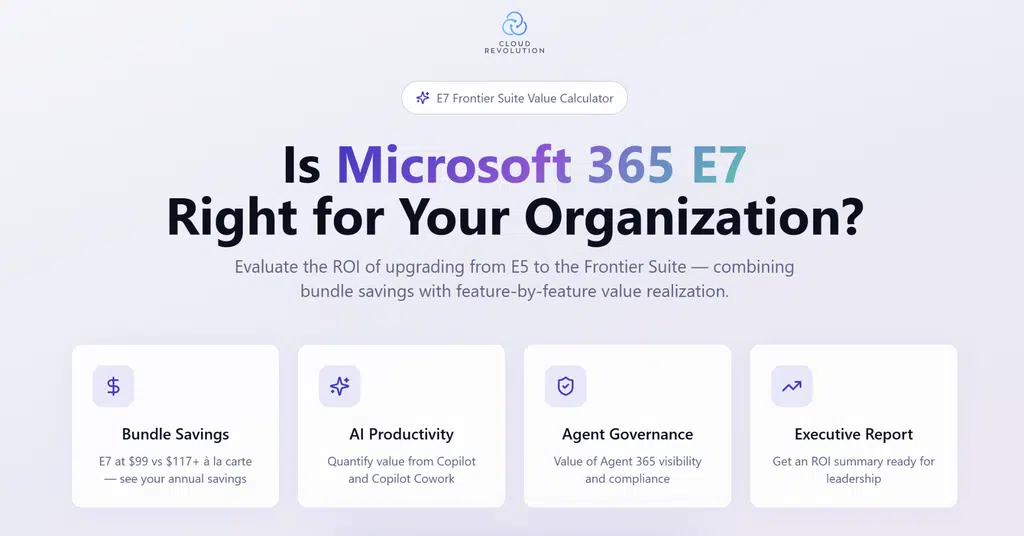
The Cloud Revolution E7 Value Calculator gives you a starting point for that conversation.
👉 Calculate the value of your Microsoft 365 investment →
The objective isn’t to prove that E7 is right for everyone.
It’s to understand what your Microsoft 365 investment is actually worth before making your next licensing decision.
Because sometimes the opportunity isn’t simply to spend less.
It’s to get significantly more value from what you’re already paying for.
Is Microsoft 365 Copilot Worth It?
Copilot creates a different licensing problem.
With E3 and E5, you’re deciding which package of capabilities a user needs. With Copilot, you’re paying for a capability that only creates value if people actually use it—and use it in ways that matter to the business.
That makes “How many Copilot licenses do we need?” a much more important question than simply asking whether Copilot is worth it.
The answer probably isn’t everyone.
It might not even be a fixed percentage of your workforce.
Start with the work, not the license
The strongest Copilot business cases tend to come from specific workflows.
Think about the people in your organization who spend significant amounts of time:
- Creating and reviewing documents
- Preparing for and following up on meetings
- Working through large volumes of information
- Writing, analyzing or summarizing content
- Searching for information across Microsoft 365
- Repeating the same knowledge-intensive tasks every day
The question is whether Copilot can materially improve those workflows.
If it can save someone minutes every day, improve the quality of their output, or allow them to spend more time on higher-value work, the economics start to look very different.
But giving the same license to someone who has little opportunity or inclination to use it doesn’t create value simply because the feature is available.
Don’t measure success by licenses assigned
A common mistake is treating deployment as the achievement.
You bought 500 Copilot licenses.
500 users have access.
Therefore, the rollout is successful.
It isn’t.
The more useful questions are:
- Are people using Copilot regularly?
- Which workflows are benefiting?
- What time or quality improvements are being achieved?
- Which roles are getting the most value?
- Should the deployment expand, change or contract?
This is where Copilot becomes part of your broader Microsoft 365 licensing strategy rather than another line item on the invoice.
The right number of Copilot licenses can change
Your first deployment doesn’t have to determine your long-term licensing model.
You might start with a targeted group, measure what happens, identify where the strongest results are coming from, and then expand.
Equally, you might discover that some users aren’t getting enough value to justify the ongoing cost.
That’s not a failed Copilot strategy.
That’s useful information.
The objective is to build a Copilot investment that grows because the value is proven—not because someone decided every employee should have a license.
And as Copilot, agents and other AI capabilities continue to evolve, that distinction is going to become increasingly important.
The question isn’t whether your organization should use Copilot. It’s whether you’re licensing the right people to get value from it.
There’s also the small problem of jumping into Copilot before you’ve got your ducks in a row.
Before you spend money (or any more money) on Copilot licenses, make sure you’ve done the following:
- Read: How Many Microsoft 365 Copilot Licenses Should You Actually Buy?
- Free Assessment: Copilot Readiness Assessment

Which Users Need Teams Premium?
Yes, there’s even more Microsoft 365 licensing to consider. I hope you hadn’t forgotten about this one.
Teams Premium is another easy place for licensing to drift away from actual need.
The question isn’t whether Teams Premium has useful capabilities.
It’s which users actually need those capabilities. Spotting a pattern?
If Teams Premium was rolled out broadly because it offered useful features for one group, you may now be paying for those features across hundreds or thousands of users who rarely use them.
The better approach is to identify the specific capabilities that justify Teams Premium and map them to the people who need them.
For example, some users may have requirements around:
- Advanced meeting experiences
- Enhanced meeting protection
- Custom meeting templates
- Advanced webinar capabilities
- Branding and organizational meeting controls
Others may get everything they need from standard Teams.
Don’t license the feature. License the need.
This is the same principle we applied to E3, E5 and Copilot.
A premium capability should have a reason for being assigned.
That doesn’t mean removing Teams Premium from everyone who doesn’t use it every week. Some capabilities may be business-critical even when they’re used infrequently.
It means understanding why the license exists and whether that reason still applies.
A Teams Premium review can therefore uncover two things:
Users who don’t need the license they’re paying for.
And:
Users who do need premium capabilities but aren’t currently licensed for them.
Both matter.
Because the goal of Microsoft 365 license optimization isn’t to remove premium licenses.
It’s to make sure premium licenses are going to the people who actually benefit from them.
How to Run a Microsoft 365 Licensing Audit
Now we move to the part where you take action.
A Microsoft 365 licensing audit shouldn’t be a spreadsheet exercise that produces a list of licenses to remove.
Done properly, it’s a structured review of what you have, what people use, what they need and what you’re paying for.
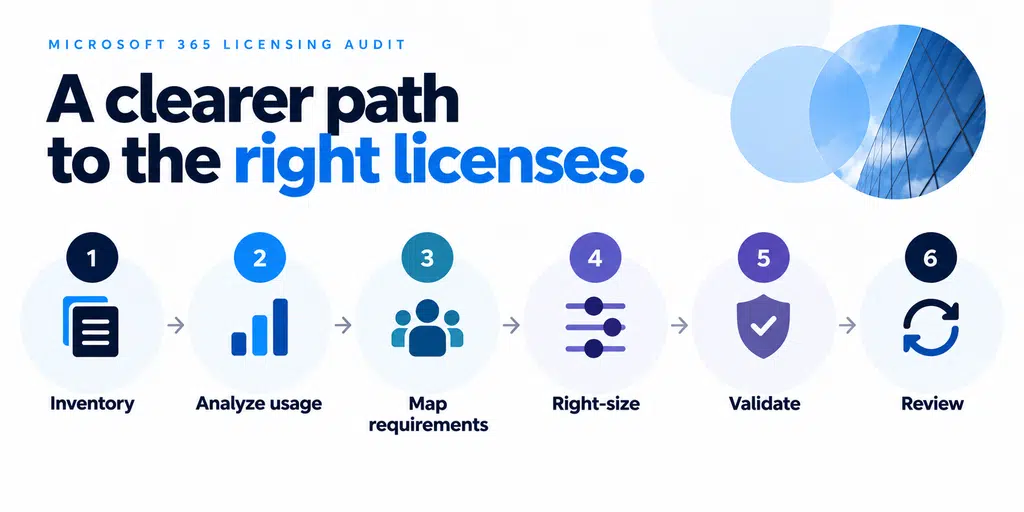
The most useful approach is to work through six stages:
1. Inventory
Start with the numbers.
What licenses do you own? What licenses are assigned? What’s unassigned? Which add-ons are you paying for?
Look across the entire estate—not just E3 and E5.
Include Copilot, Teams Premium, Teams Phone and any other licenses or add-ons that contribute to your Microsoft 365 costs.
You need a reliable baseline before you can identify an opportunity.
2. Analyze usage
Next, look at how the environment is actually being used.
Identify inactive accounts, low adoption and significant differences between user groups.
But don’t confuse low usage with no requirement.
Usage data tells you where to investigate. It doesn’t always tell you what the right licensing decision is.
3. Map requirements to users
This is the part that turns a license review into an optimization exercise.
Group users according to what they actually need to do.
For each group, ask:
What Microsoft 365 capabilities are essential to this role?
Then map those requirements against the licenses they’re currently assigned.
This is where you may discover that two groups with very different licenses actually have similar requirements—or that users with the same license have very different needs.
4. Right-size
Now you can model the alternatives.
- Could some users move from E5 to E3?
- Could certain premium add-ons be targeted to specific users rather than entire groups?
- Are there Copilot licenses that aren’t delivering enough value?
- Are there licenses that can simply be removed?
And just as importantly, are there users who need more capability than they’re currently getting?
Optimization works in both directions.
5. Validate
Before making changes, test the proposed model.
Check security and compliance requirements. Validate dependencies. Confirm that users won’t lose capabilities their roles rely on.
For larger environments, pilot significant changes with representative user groups before applying them at scale.
The goal isn’t to produce the biggest possible saving on paper.
It’s to produce a licensing model that works in the real world.
6. Review
A licensing audit gives you a point-in-time view. A licensing strategy keeps that view current.
New employees join. People change roles. Projects end. New Microsoft capabilities become available. Your AI adoption changes. Business requirements evolve.
If you only review licensing when your agreement is up for renewal, you’re likely to spend years carrying decisions that no longer make sense.
A regular Microsoft 365 license review creates an opportunity to catch those changes before they become embedded in your costs.
Inventory → Usage → Requirements → Right-size → Validate → Review.
That’s the process for turning a collection of Microsoft 365 licenses into a licensing strategy based on actual need.
Need Help Reviewing Your Microsoft 365 Environment?
A licensing review can uncover significant opportunities but only if you look at licensing alongside how your people actually use Teams, Copilot and Microsoft 365.
Cloud Revolution can help you assess your current environment, identify opportunities to optimize your licensing and build a roadmap around the capabilities that will deliver the most value.
👉 Review Your Teams & Copilot Strategy →

More than a Microsoft 365 roadmap
Getting more from Microsoft 365 isn’t just about choosing the right licenses or turning on more features.
Cloud Revolution helps you connect technology, adoption and business value so you know what to implement, who needs it, how to drive adoption and whether it’s actually delivering the return you expected.
Our approach is simple:
- Activate: Build the right technical and strategic foundation.
- Adopt: Make sure people actually use the technology effectively.
- Measure: Track adoption, productivity and business outcomes.
- Maximize: Keep optimizing your Microsoft 365 investment as your organization evolves.
The result isn’t another technology project that gets deployed and forgotten. It’s a Microsoft 365 strategy built around measurable outcomes, lower risk and more value from the investment you’ve already made.
And there’s a reason we’re so focused on getting this right
Cloud Revolution was built by people who’ve spent their careers working inside the Microsoft ecosystem—not just selling Microsoft technology.
- Chad McGreanor, CEO & Co-Founder, is a three-time Microsoft MVP and Microsoft Certified Master with more than 20 years of experience delivering Microsoft infrastructure and modern workplace projects.
- Adam Ball, Vice President & Co-Founder, is a Microsoft Teams MVP and trusted advisor on enterprise Teams, Teams Phone, Copilot and AI transformation.
They’re still directly involved in the work, alongside a team of specialists who understand what happens when Microsoft 365 projects move from the PowerPoint deck into a real organization.
Because ultimately, technology doesn’t deliver the outcome. People do.

You must be logged in to post a comment.